Full Account Deletion
Follow these structured steps to completely and permanently purge your core credentials, files, metric histories, and matching study files from our databases.
-
1
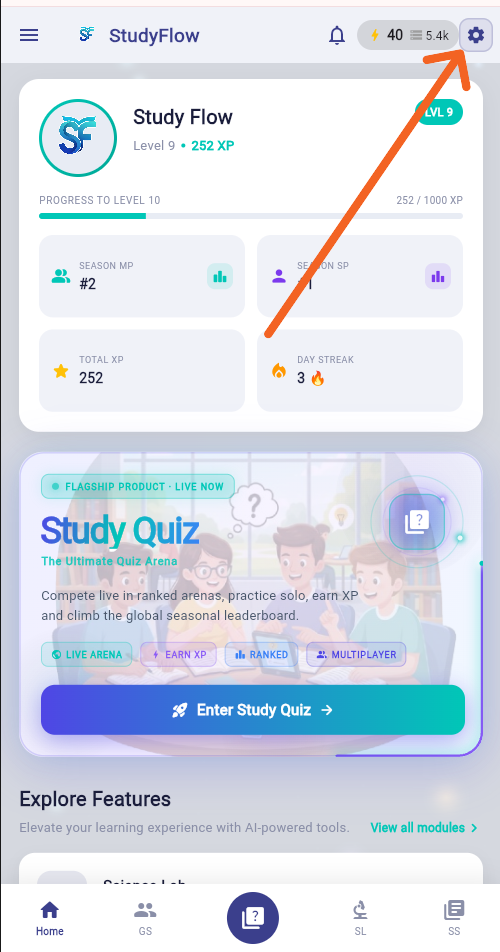
Access In-App System Configurations
From your core user status dashboard menu, tap the Settings Gear icon situated at the top right header navigation panel.
-
2
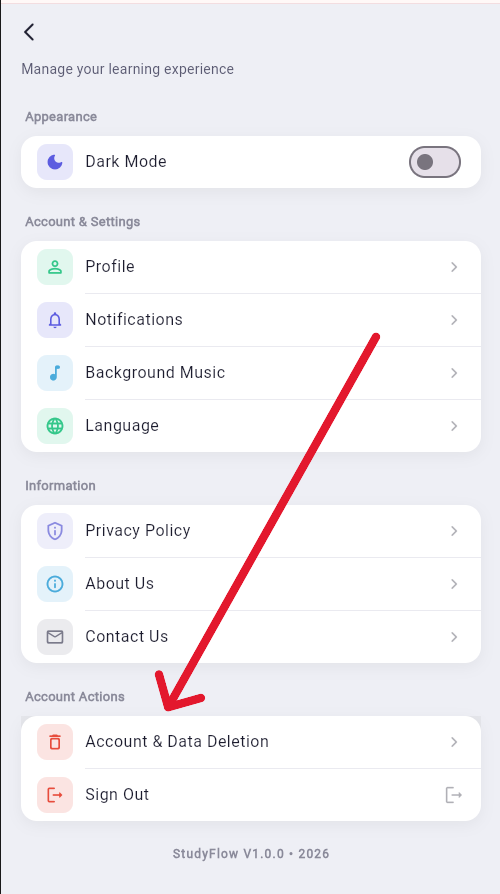
Navigate to Data Actions Panel
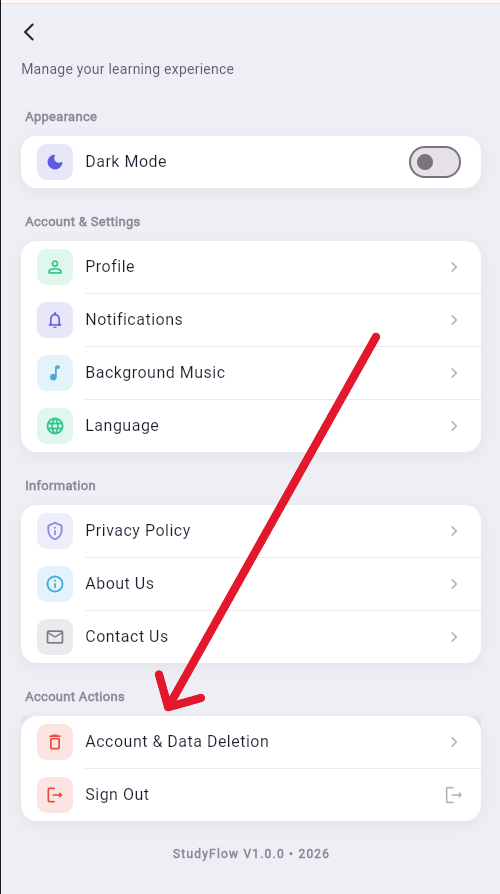
Scroll down the configuration list and select the Account & Data Deletion item field inside the Account Actions group block.
-
3
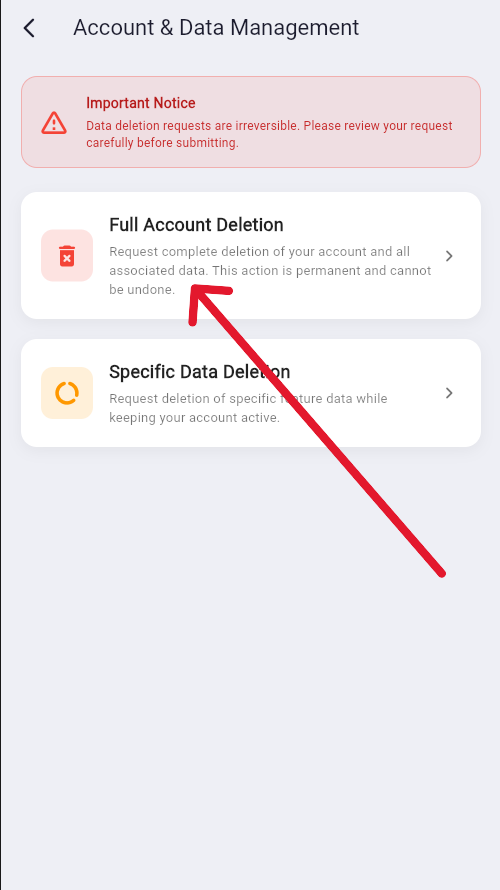
Select Full Account Deletion
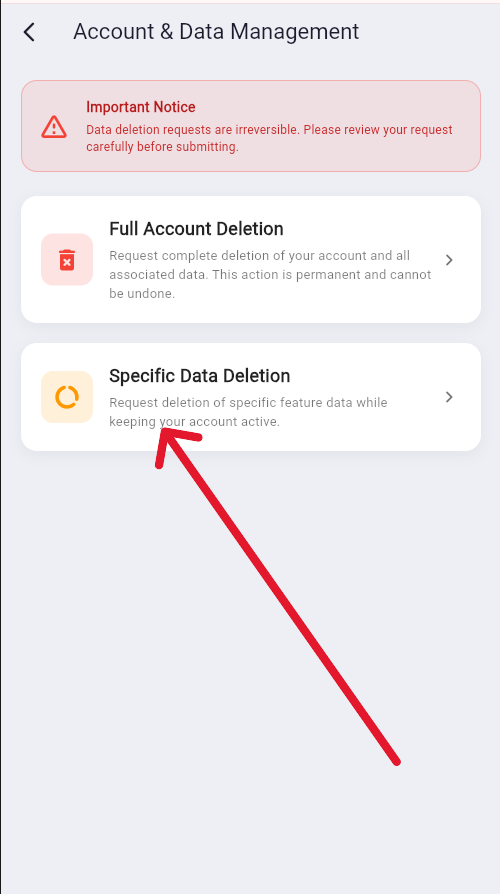
Tap on the first card option titled Full Account Deletion to initialize the deep cleanup procedure.
-
4
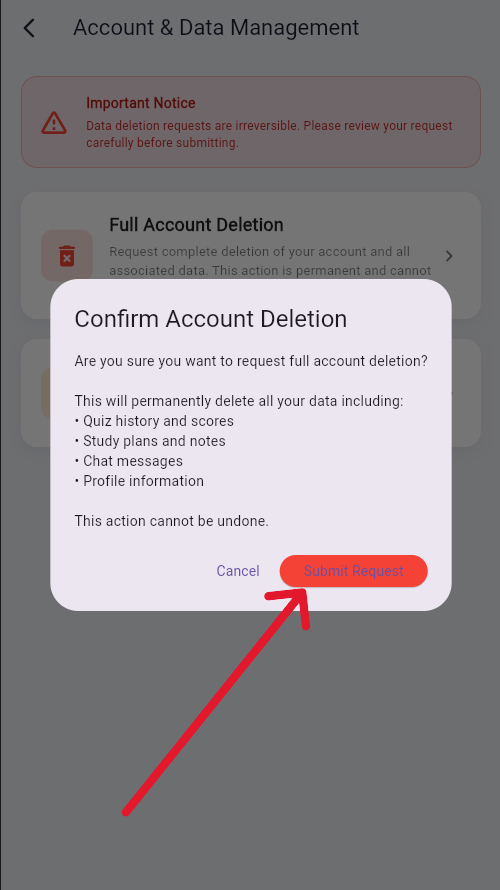
Confirm Core Profile Deletion Request
Review the specific data scopes marked for deletion, then tap the red Submit Request button. The platform will process your permanent profile removal instantly.
Specific Data Deletion
Use this interface module sequence to clean up operational text logs or distinct layout sub-records while maintaining your active Level, XP thresholds, and friend rosters.
-
1
Open In-App Global Settings
Tap the Settings Gear icon located at the top right of your master home display dashboard.
-
2
Access Account & Data Management
Navigate to the lower bottom sector and select the Account & Data Deletion row list option.
-
3
Select Specific Data Deletion
Choose the second system card titled Specific Data Deletion to adjust targeted feature content scopes.
-
4
Target Specific App Module
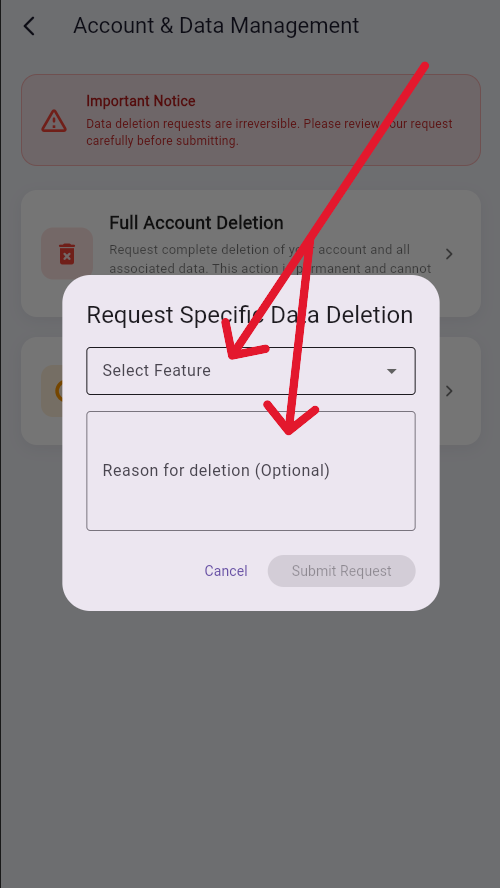
Open the feature selection dropdown and pick the component you want to clear (e.g., Task Manager).
-
5
Provide Reason and Submit
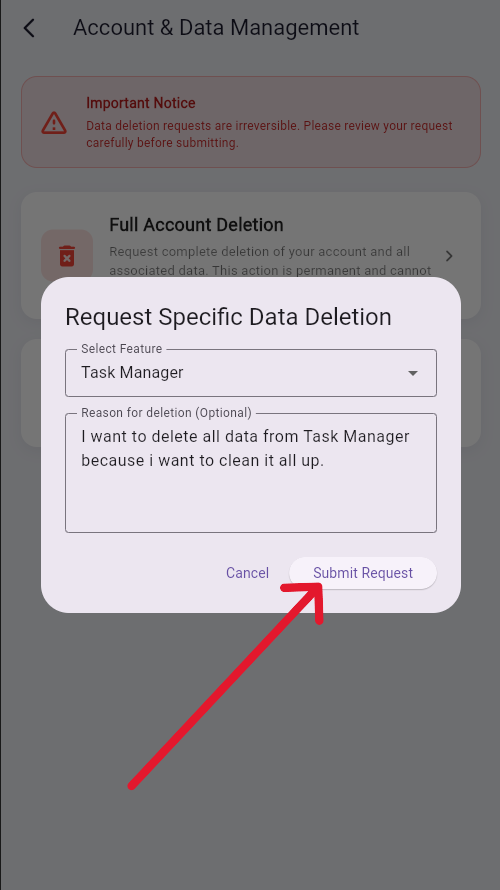
You can optionally enter a reason for deletion, then tap the purple Submit Request button to execute the modular reset.
Full Account Deletion
Follow these structured steps to completely and permanently purge your core credentials, files, metric histories, and matching study files from our databases.
-
1
Access In-App System Configurations
From your core user status dashboard menu, tap the Settings Gear icon situated at the top right header navigation panel.
-
2
Navigate to Data Actions Panel
Scroll down the configuration list and select the Account & Data Deletion item field inside the Account Actions group block.
-
3
Select Full Account Deletion
Tap on the first card option titled Full Account Deletion to initialize the deep cleanup procedure.
-
4
Confirm Core Profile Deletion Request
Review the specific data scopes marked for deletion, then tap the red Submit Request button. The platform will process your permanent profile removal instantly.
Specific Data Deletion
Use this interface module sequence to clean up operational text logs or distinct layout sub-records while maintaining your active Level, XP thresholds, and friend rosters.
-
1
Open In-App Global Settings
Tap the Settings Gear icon located at the top right of your master home display dashboard.
-
2
Access Account & Data Management
Navigate to the lower bottom sector and select the Account & Data Deletion row list option.
-
3
Select Specific Data Deletion
Choose the second system card titled Specific Data Deletion to adjust targeted feature content scopes.
-
4
Target Specific App Module
Open the feature selection dropdown and pick the component you want to clear (e.g., Task Manager).
-
5
Provide Reason and Submit
You can optionally enter a reason for deletion, then tap the purple Submit Request button to execute the modular reset.